
AI Image Editor
Edit photos with prompts using GPT Image 2 Edit
Use this AI image editor to upload a photo and describe the change you want. GPT Image 2 Edit handles background replacement, object removal, style changes, and local refinements in one browser workflow.
Start with $1 credit.
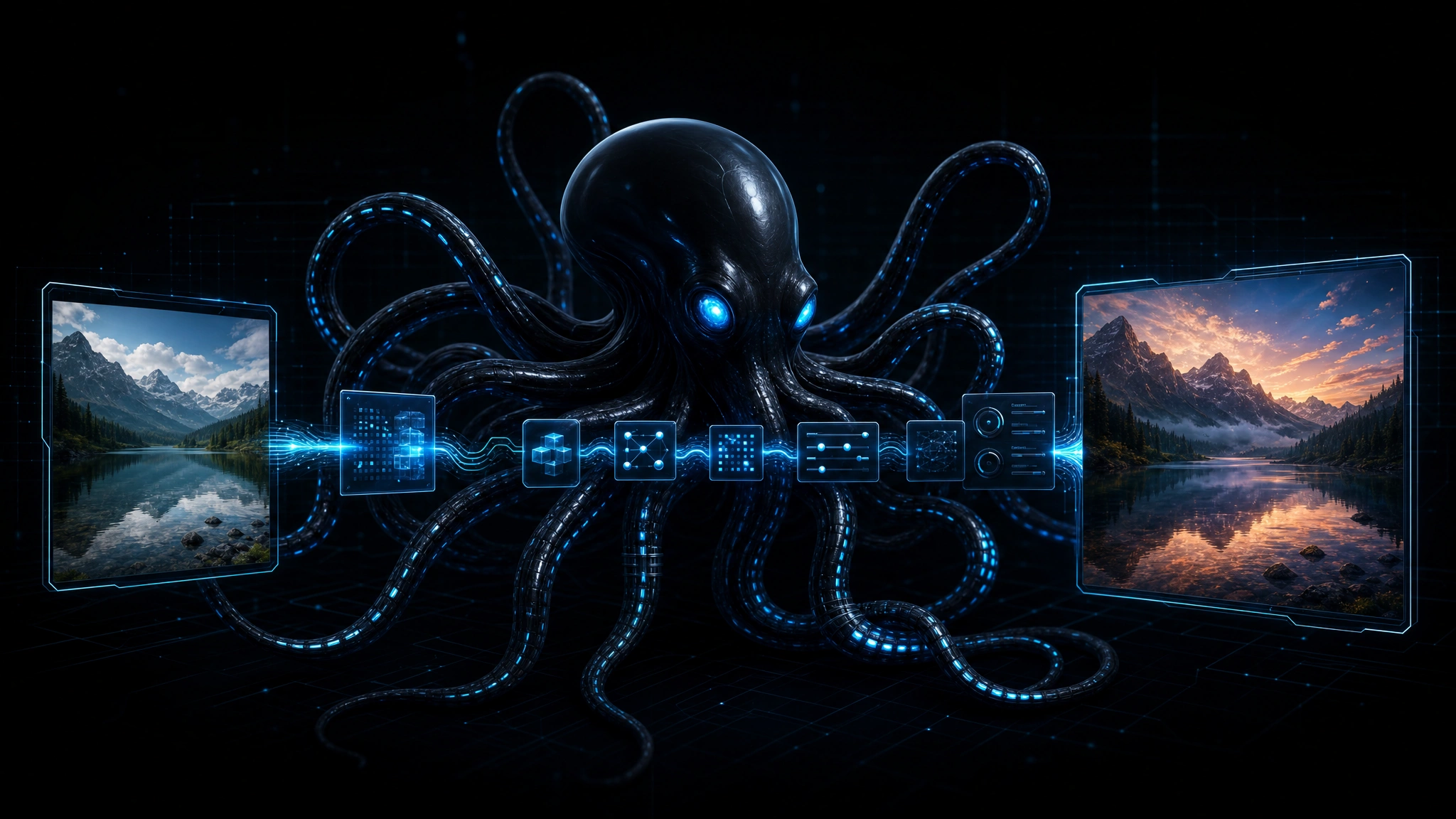
AI image editor at a glance
Edit images without design software
This AI image editor removes the need for complex tools. Upload a product photo, portrait, or creative asset, then describe the edit. This AI image editing workflow is designed for teams that want fast visual edits without installing design software. The model identifies the region, applies the change, and blends the result with the original lighting and style.
For deeper quality analysis, pricing context, and limitation notes, read the GPT Image 2 Edit Review.

Upload, describe, preview, export
The editor workflow is built for quick creative decisions.
Upload. Use a clear JPG, PNG, or WebP image with the subject you want to preserve.
Describe. Ask for a specific change such as "replace the background with a clean white studio" or "remove the red bag."
Preview. Check subject consistency, lighting, and style before exporting.
Iterate. Adjust the prompt, download the result, or move the pattern to the Image 2 Edit API for automation.
What to edit first
Background replacement
Move products into studio, outdoor, or branded scenes
Object removal
Clean up clutter, reflections, or unwanted items
Object replacement
Swap one item for another while keeping the scene
Style transfer
Convert photos into illustration, cinematic, or editorial styles
Product variants
Test colors, materials, and presentation angles
Social assets
Generate ad and thumbnail variants from source images
Portrait retouching
Adjust lighting, background, or small details
Catalog refreshes
Standardize visuals before API batch processing
Prompt patterns that work
The AI image editor responds best to specific instructions. Include the target object, the desired change, and any constraints.
Instead of "make it better," use "replace the background with a soft gray studio backdrop and keep the product shadows." Instead of "remove this," use "remove the coffee cup on the right side of the desk and fill the space with the wood texture."
Use the playground to test prompts visually. When the pattern is stable, move it to the image editing API for batch or product workflows.
Trust and source note
OpenAI's GPT Image 2 announcement introduces the model family behind the editor, and WaveSpeedAI's GPT Image 2 Edit release note describes managed access to the editing workflow. Use these sources for context, then validate output quality against your own images.
AI image editor FAQ
Start editing with the AI image editor
Use the playground for immediate edits, then switch to API access when your workflow needs repeatable production automation.
Start with $1 credit.