
Imagen 3 Login & Access
Start creating images online in minutes
Use this Imagen login path when you want to open Imagen 3, test prompts, choose an output format, and generate images in a browser without setting up cloud infrastructure.
Start with $1 credit.
Imagen login snapshot
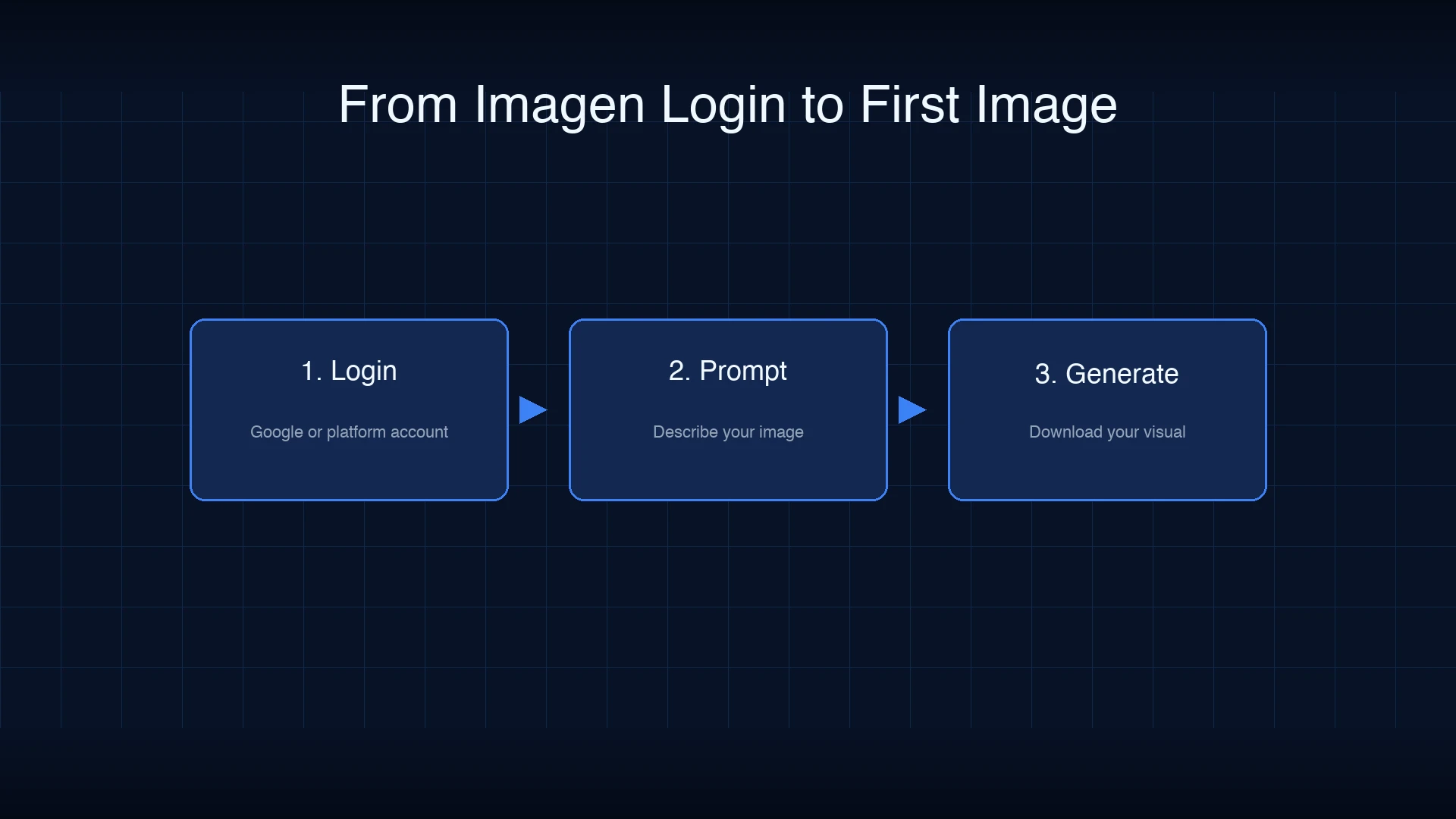
Open Imagen 3 and create your first image
Imagen login should take users directly to creation, not into a long setup path. Start by opening the playground, writing a specific visual prompt, choosing the image ratio, and generating a candidate.
Google introduced Imagen 3 in the Gemini API, and Google DeepMind describes Imagen as a model family for high-quality image generation. For deeper prompt writing, use the Imagen3 Prompt Guide instead of turning this access page into a tutorial.
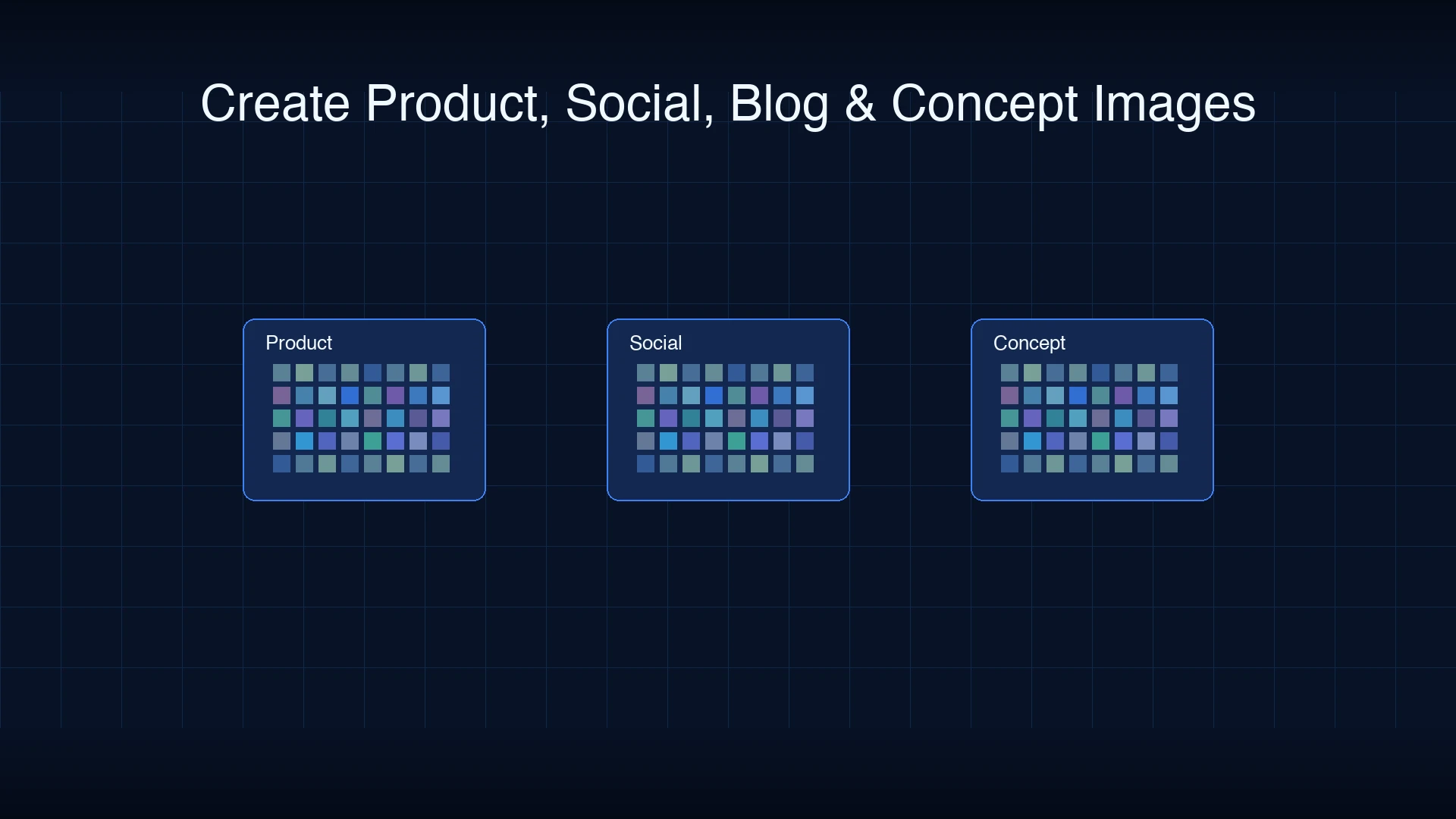
Choose playground or API access
Use the playground when a person needs to create or review images manually. Use API access when your app needs to generate images from saved prompt templates, product data, campaign briefs, or user input.
The same Imagen login journey can support both workflows: creators validate visual direction online, then developers automate the stable parts through API calls, logging, and review queues.
Create after Imagen login
Product scenes
Generate product-style visuals and lifestyle concepts
Social images
Make square, vertical, and wide campaign assets
Blog headers
Create custom editorial visuals without stock libraries
Presentation art
Generate supporting visuals for decks and reports
Prompt testing
Compare several prompt versions before using the API
Format control
Match output ratio to social, web, and campaign needs
Team review
Share generated candidates before final publishing
API automation
Reuse approved prompts in repeatable workflows
Access path for creators and teams
The fastest Imagen login workflow is simple: open the model page, describe the image, select the format, generate candidates, and download the strongest result. Keep prompts specific with subject, scene, lighting, style, and intended channel.
For teams, add review steps before publishing. Track prompt text, selected output, reviewer, usage context, and whether the image is safe for brand or commercial use.
Trust and source note
Firebase Blog documents Imagen 3 support in Vertex AI SDKs. Google DeepMind provides model-family context for Imagen. Use those sources for model context, then test Imagen login against your own prompts and review standards.
Imagen login FAQ
Complete Imagen login and start creating
Open the Imagen 3 playground, test a prompt, and move to API access when the workflow needs production automation.
Start with $1 credit.